Chapter 36 MS PowerPoint English + Hindi

PowerPoint Design Tab

पावरपॉइंट डिजाइन टैब

PowerPoint Design Tab

पावरपॉइंट डिजाइन टैब

The Design tab controls themes, variants, slide size, background formatting, and design suggestions. This chapter connects the topic with classroom explanation, real examples, and hands-on practice.

Design tab themes, variants, slide size, background formatting और design suggestions control करता है. इस chapter में topic को classroom explanation, real examples और hands-on practice से समझाया गया है.
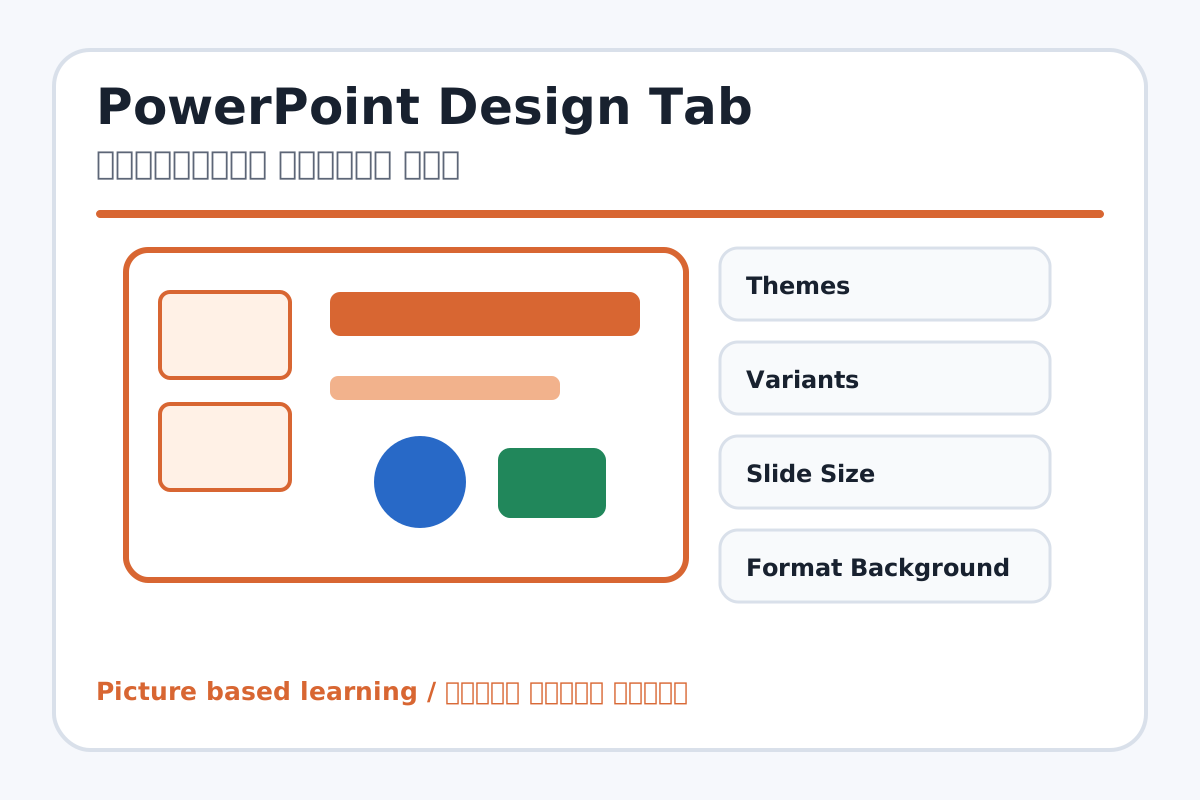
PowerPoint Design Tab topic visual / पावरपॉइंट डिजाइन टैब चित्र
Chapter image shows the exact topic parts for visual learning. / Chapter image में topic के parts साफ दिखाए गए हैं.

Tool Heading & Description / टूल शीर्षक और विवरण

Themes

Themes helps create, design, animate, or present slides in PowerPoint.

Themes PowerPoint में slides create, design, animate या present करने में help करता है.

Variants

Variants is a main point of PowerPoint Design Tab and should be understood before practical work.

Variants PowerPoint Design Tab ka main point hai; practical se pehle iska meaning samajhna zaroori hai.

Slide Size

Slide Size helps create, design, animate, or present slides in PowerPoint.

Slide Size PowerPoint में slides create, design, animate या present करने में help करता है.

Format Background

Format Background is a main point of PowerPoint Design Tab and should be understood before practical work.

Format Background PowerPoint Design Tab ka main point hai; practical se pehle iska meaning samajhna zaroori hai.

Designer

Designer helps create, design, animate, or present slides in PowerPoint.

Designer PowerPoint में slides create, design, animate या present करने में help करता है.

Learning Objectives / सीखने के लक्ष्य

  • Apply a theme and variant.
  • Set widescreen or standard slide size.
  • Format slide background neatly.

Theory / Meaning / अर्थ

English MeaningThe Design tab controls themes, variants, slide size, background formatting, and design suggestions.

Hindi MeaningDesign tab themes, variants, slide size, background formatting और design suggestions control करता है.

Uses / उपयोग

  • Making presentation attractive and consistent.
  • Choosing suitable design for school topic.
  • Changing slide background without making text unreadable.

Step-by-Step Teaching / पढ़ाने के स्टेप्स

  1. Open a presentation and choose a simple theme.
  2. Try theme variants for color and font changes.
  3. Set slide size to Widescreen if projector uses modern screen.
  4. Format background with solid or light color.
  5. Use Designer suggestions if available.

Teacher Explanation Notes / शिक्षक नोट्स

  • Avoid very dark or busy backgrounds for classroom readability.
  • Encourage one consistent theme across the whole presentation.

Practical Work / प्रैक्टिकल कार्य

  • Apply a theme to a 5-slide presentation and choose a matching variant.
  • Set readable background and check text contrast.

Homework / गृहकार्य

  • Write the use of Theme, Variant, Slide Size, and Format Background.
  • Sketch two slide designs in notebook.

Short Test Questions / छोटे टेस्ट प्रश्न

  1. What is Theme?
  2. What is Variant?
  3. What is Slide Size?
  4. What does Format Background do?
  5. Why should text contrast be clear?

Viva Questions / मौखिक प्रश्न

  1. Same theme use karne se presentation kaisi dikhti hai?
  2. Widescreen ka use kab hota hai?
  3. Background zyada dark ho to kya problem hai?

Real Image + Image Prompt / वास्तविक चित्र + इमेज प्रॉम्प्ट

PowerPoint Design Tab educational image / पावरपॉइंट डिजाइन टैब educational image
Suggested file: ms-powerpoint-interface.jpg | सुझाया गया file name: ms-powerpoint-interface.jpg

Create an educational PowerPoint Design tab image showing Themes, Variants, Slide Size, Format Background, and Designer with examples of clean slide design and Hindi-English labels.